
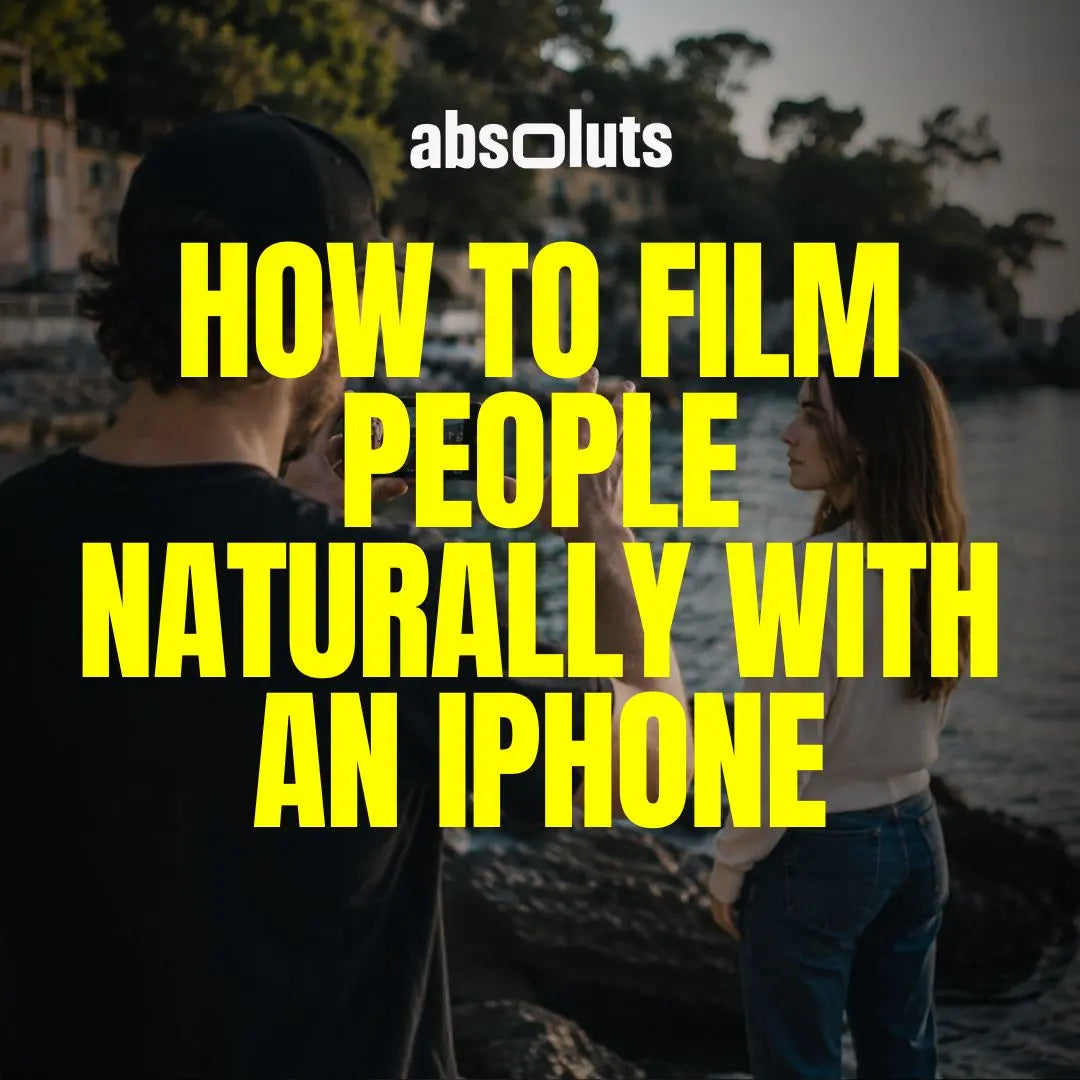
Simple directing techniques that make anyone look comfortable on camera
One of the biggest differences between amateur and professional videos has nothing to do with the camera. It is the person in front of it.
You can have perfect lighting, beautiful composition, and cinematic color grading, but if your subject looks uncomfortable or overly aware of the camera, the illusion disappears.
The good news is that you do not need professional actors to create engaging videos. Most people simply need better direction.
In this guide, you'll learn practical techniques that help anyone look more relaxed, natural, and cinematic when filming with an iPhone.
1. Stop Asking People to "Act Natural"
Many creators instinctively say things like:
- "Just act normal."
- "Pretend the camera isn't here."
- "Be yourself."
Although well intentioned, these instructions are too vague. Most people immediately become more self-conscious. Instead, give your subject something specific to do.
Examples include:
- Walk toward the camera.
- Look out the window.
- Pick up a coffee cup.
- Open a backpack.
- Tie your shoes.
- Read a sign.
Actions feel natural because they give the body a clear purpose.
2. Give Objectives Instead of Movements
Rather than directing only physical actions, explain the intention behind them. Instead of saying:
"Walk across the street."
Try:
"Walk as if you're heading to meet a friend you haven't seen in years."
Instead of:
"Look over there."
Try:
"Look for the café you're trying to find."
Simple objectives create believable expressions without asking someone to perform.
3. Keep Your Subject Moving
Standing perfectly still is uncomfortable for most people. Movement naturally relaxes the body and creates more dynamic footage.
Simple movements include:
- Walking slowly
- Turning toward the light
- Looking around
- Sitting down
- Picking something up
- Brushing hair away from the face
These small actions often produce authentic moments that feel spontaneous.

4. Keep Talking Durin g the Take
Silence can make people feel like every movement is being judged. Professional directors often continue speaking while recording.
Try giving gentle guidance such as:
- "Perfect, keep going."
- "Slow down a little."
- "Look toward the sunlight."
- "Take another step."
- "That's exactly what I was looking for."
Your voice reassures the subject and keeps them engaged.
5. Demonstrate the Action Yourself
If someone struggles to understand your instructions, show them. Walk the path. Perform the movement. Demonstrate the pace.
People naturally imitate what they see far more accurately than what they hear. This also speeds up the shoot by reducing confusion.
6. Let the Environment Create the Performance
Instead of inventing actions, use what already exists around your subject. Encourage interactions such as:
- Opening a door
- Looking through a shop window
- Sitting on a bench
- Holding a railing
- Touching textured walls
- Walking through tall grass
- Watching the ocean
These interactions create believable moments because they have a real purpose.
7. Record Before and After the Action
Many creators stop recording as soon as the planned movement ends. This is often when the best moments happen.
Subjects tend to relax:
- Before they think the take has started
- Immediately after finishing the action
- During transitions between movements
Allow the camera to roll a few extra seconds. Those unscripted moments often become the strongest shots in the edit.
8. Capture Multiple Variations
Do not settle for a single version. Ask your subject to repeat the same action while changing:
- Walking speed
- Camera angle
- Framing
- Direction of movement
- Eye line
Small variations provide far more flexibility during editing.
9. Reinforce the Mood in Post-Production
A natural performance becomes even more convincing when paired with a consistent visual style.
For travel, documentary, and lifestyle projects:
- Kodak Vision 3 LUT creates warm, cinematic tones that enhance authentic moments without overpowering the scene.
For modern commercial or urban productions:
- iRED Mode LUT Pack adds contrast and depth while maintaining a polished, professional look.
Matching the visual style to the emotion of the performance helps every shot feel intentional.
10. Keep Skin Tones Looking Natural
People instinctively notice skin tones before almost anything else. Even a great performance can feel unnatural if skin appears too red, too orange, or overly saturated.
When grading in DaVinci Resolve, subtle refinements with:
- Skintone Craft PowerGrade can help maintain consistent, realistic skin tones across different lighting conditions while preserving the natural character of the image.

11. Common Mistakes When Directing Non-Actors
Avoid these common pitfalls:
Giving Too Many Instructions
Keep directions short and specific. One action at a time is easier to follow.
Expecting Instant Results
Most people become noticeably more comfortable after a few takes. Give them time to settle in.
Ignoring Body Language
Pay attention to:
- Tense shoulders
- Rigid hands
- Forced smiles
- Unnatural posture
Small adjustments often make a huge difference.
Forgetting to Encourage
Positive feedback helps subjects relax. Simple phrases like:
- "That looked great."
- "Perfect."
- "Let's do one more just like that."
build confidence throughout the shoot.
Final Thoughts
Great performances are rarely the result of great acting. More often, they are the result of great direction.
By replacing vague instructions with simple actions, encouraging movement, interacting with the environment, and creating a relaxed atmosphere, you can help almost anyone look confident on camera.
When those authentic performances are combined with thoughtful composition, natural light, and a cohesive color grade, your iPhone videos become far more engaging and cinematic.
Sometimes the most powerful improvement you can make isn't changing your camera settings. It's changing how you communicate with the person in front of the lens.




Leave a comment
All comments are moderated before being published.
This site is protected by hCaptcha and the hCaptcha Privacy Policy and Terms of Service apply.